
These are instructions on how install and setup gesture based Multitouch on your MacBook Pro.
You can pinch, swipe, or rotate to zoom in on text, advance through a photo album, or adjust an image. The gesture-based input so successful on iPhone and iPod touch is now available on the MacBook.
Step One
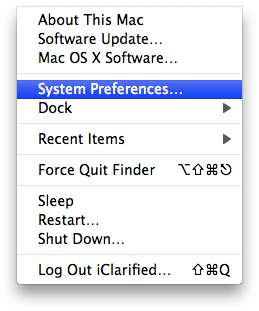
Select System Preferences from the Apple Menu at the top left of the screen.
Step Two
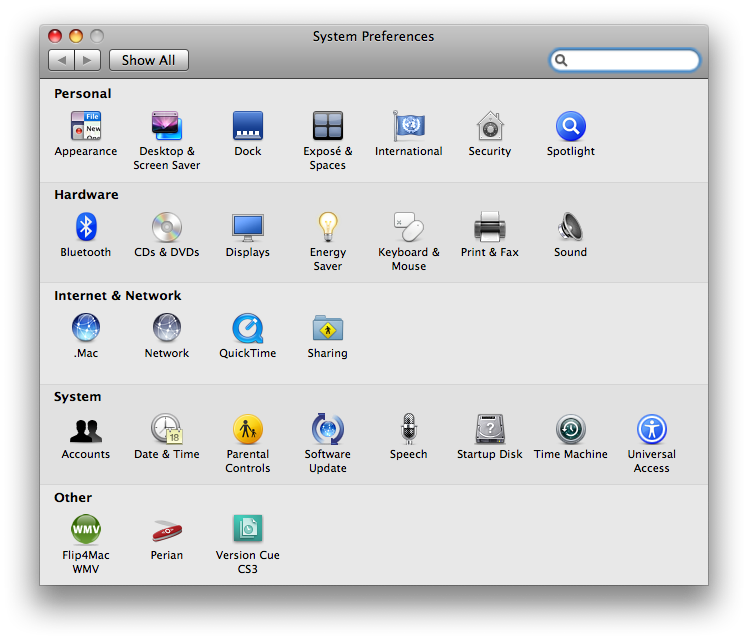
Select Keyboard & Mouse from the System Preferences window.
Step Three
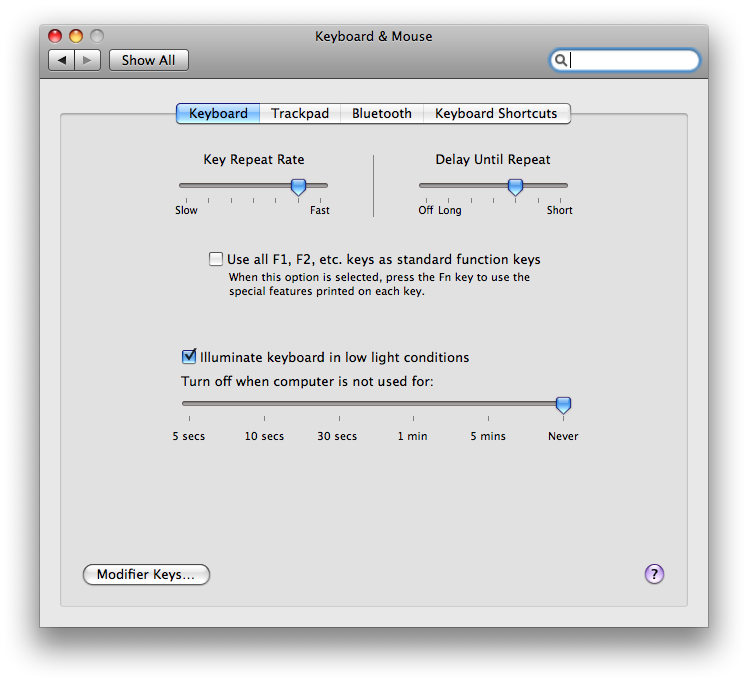
Select the Trackpad tab from the Keyboard & Mouse window.
Step Four
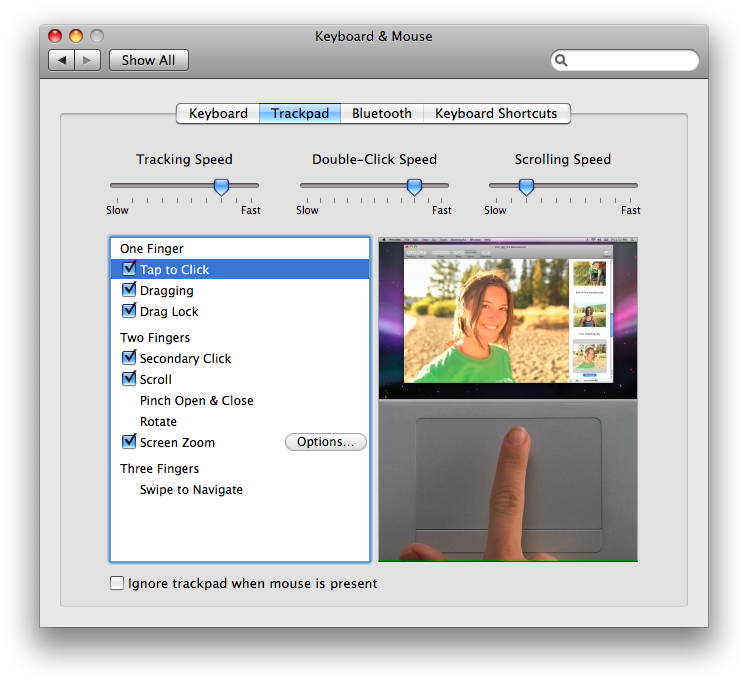
Select the multitouch gestures you would like to enable from the list along the left side. I have selected them all for this tutorial.
MULTI-TOUCH GESTURES
Tap to Click
This gesture allows you to tap with one finger simulating a mouse click. So use the trackpad to move the pointer over something you wish to select, then tap the trackpad once with one finger.
Dragging
To drag an item, for example a window, you double tap with one finger and on the second tap keep your finger on the trackpad and begin dragging.
Drag Lock
To drag an item, for example a window, you double tap with one finger and on the second tap keep your finger on the trackpad and begin dragging. The window is now locked. You can raise your finger and place it back on the trackpad. The window will keep dragging until you tap once with one finger on the trackpad.
Secondary Click
There are two ways you can use Secondary Click. Secondary click is similar to the right mouse button in Windows. It will usually bring up a contextual menu.
First, place two fingers on the trackpad and use your thumb to press the trackpad button.
Second, tap the trackpad with two fingers.
Scroll
You can use the trackpad to scroll through a long page such as a text document or webpage. To do this simply place two fingers on the trackpad and move them up or down, left or right depending on the direction you would like to scroll.
Pinch Open & Close
You can use the pinch open and close gesture to perform useful tasks such as zooming in and out of a photo. To zoom in, for example, place your thumb and index finger together on the trackpad, then gradually expand them. To zoom out, for example, place your thumb and index finger apart on the trackpad, then gradually bring them together.
Rotate
You can also use multitouch gestures to rotate items. To use the rotate gesture, place your thumb and index finger on the trackpad about 1 inch apart and rotate them. This will cause the item selected to rotate in a similar manner.
Screen Zoom
Macs have a really neat feature by which you can actually zoom into your screen. To use this feature with multitouch simply hold down the control button on the keyboard and place two fingers on the trackpad. Move your two fingers up to zoom in and move them down to zoom out.
Swipe to Navigate
Perhaps one of the most useful multi-touch gestures is the Swipe to Navigate action. This gesture can be used to move between pages or to navigate through images. To use the gesture place three fingers on the trackpad and swipe right to navigate to the right or swipe left to navigate to the left!
