How to Use Safari on iPhone

In the Safari app , you can browse the web, view websites, preview website links, translate webpages, and add the Safari app back to your Home Screen if it gets removed. Sign in to iCloud with the same Apple ID on multiple devices to keep your open tabs, bookmarks, history, and Reading List up to date across all your devices.
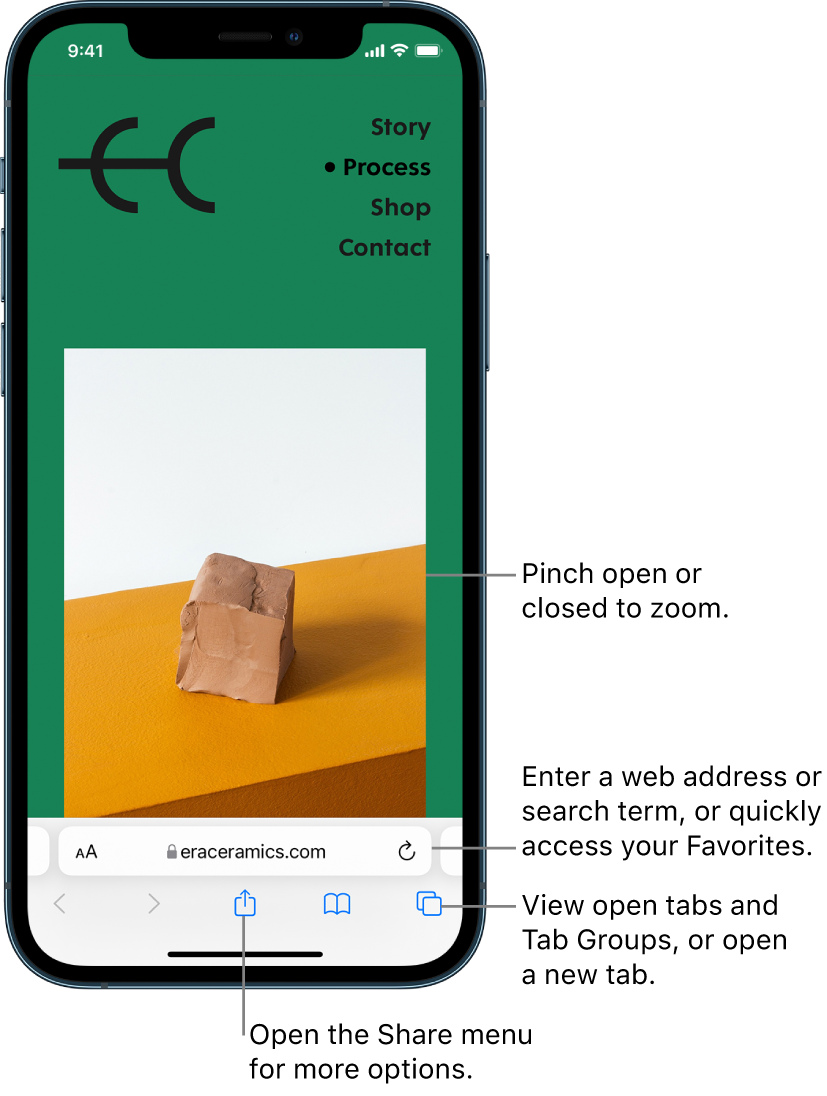
A website open in Safari, with the address field at the bottom. At the bottom, from left to right, are the Back, Forward, Share, Bookmarks, and Tabs buttons.

View websites with Safari

You can easily navigate a webpage with a few taps.

  • Get back to the top: Double-tap the top edge of the screen to quickly return to the top of a long page.

  • See more of the page: Turn iPhone to landscape orientation.

  • Refresh the page: Pull down from the top of the page.

  • Share links: At the bottom of the page, tap the Share button.

Preview website links

Touch and hold a link in Safari to see a preview of the link without opening the page. To open the link, tap the preview, or choose Open.

To close the preview and stay on the current page, tap anywhere outside the preview.

A preview of the destination URL followed by a list of possible actions: Open, Open in New Tab, Open in Tab Group, Download Linked File, Add to Reading List, and Add to Photos.

Translate a webpage

When you encounter a webpage that’s in another language, you can use Safari to translate the text (not available in all languages or regions).

When viewing a webpage in another language, tap the Page Settings button, then tap the Translate button if translation is available.

Add Safari back to your Home Screen

If you don’t see Safari on your Home Screen, you can find it in App Library and add it back.

  1. On the Home Screen, swipe left to access App Library.

  2. Enter “Safari” into the search field.

  3. Press and hold the Safari app icon, then tap Add to Home Screen.

About TopTek System Inc. – Computer & Laptop Repair in Markham

TopTek System Inc. is a trusted computer and laptop repair service in Markham, Ontario, and an Apple repair center as well as a Lenovo Authorized Service Provider. Our professional and experienced team of certified technicians provides reliable repair services for both in-warranty and out-of-warranty devices.

We specialize in:
• Laptop and computer repair in Markham
• Lenovo ThinkPad, Yoga, IdeaPad & Legion repairs
• Apple MacBook, iMac, iPhone & iPad repairs
• Screen replacement, battery replacement, and diagnostics
• Data-safe repairs with warranty options

TopTek System Inc. offers fast turnaround and same-day service for many repairs. We proudly serve customers in Markham, Toronto, Richmond Hill, Vaughan, and North York, providing professional IT support, maintenance, and managed network services for individuals and businesses.

If you’re looking for a reliable laptop repair shop in Markham, TopTek System Inc. is here to help.

Our Services

Our guarantee after service

We guarantee our service, including replacement parts, for 90 days or the remaining term of your Apple warranty or AppleCare plan coverage, whichever is longer. We offer this whenever you get service from us or any other Apple Authorized Service Providers.

Contact Us

  • 3000 Hwy 7 East, Unit A9
    Markham, ON L3R 6E1

  • (905) 604-0700 | (905) 604-7475
  • info@topteksystem.com
562995ee7af8f Thumb900
  • Same-Day Battery Replacement

  • Same-Day iPhone Display Replacement

  • Hard Drive & Memory Upgrade

  • Also We Do iPhone Screen Replacement, MacBook Pro Screen Replacement, MacBook Air Screen Replacement, iMac Screen Replacement, iPad Screen Replacement, iPod Screen Replacement,
    Within 1 Hour till 3 Business Days!!!

Copyright © 2025 Topteksystem. All Rights Reserved | Supported by xiSolutions