
Let’s learn how to turn your Mac on and off, and get help with issues during startup or shutdown.
Turn on (startup) your Mac
In order to turn on your Mac, push its power button, which is usually marked . Some Mac notebooks turn on when you open them, connect them to power, press any key, or press the trackpad.
You can check turning on different Mac models right here.
Mac notebooks
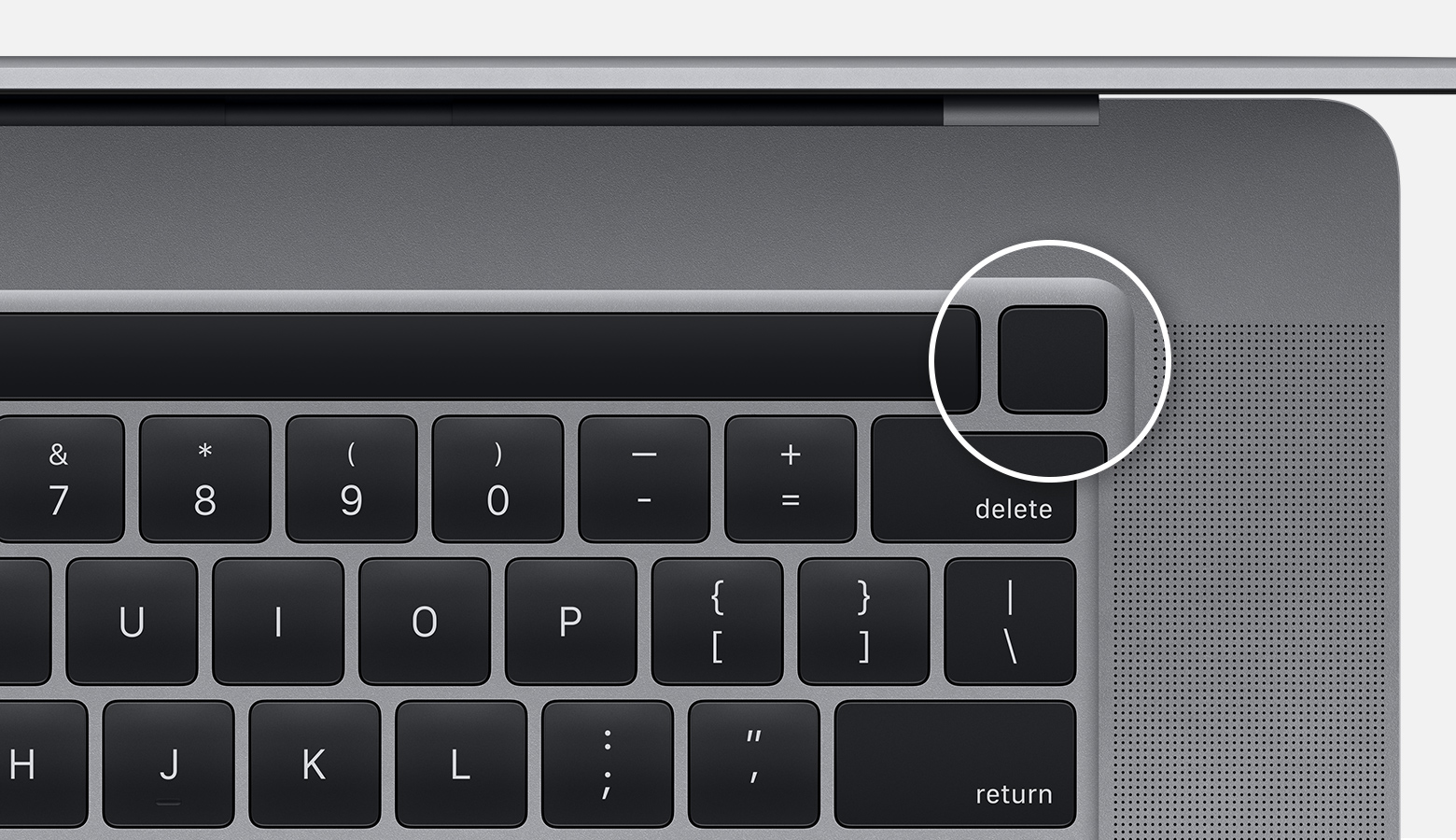
About MacBook Pro models that have got a Touch Bar, Touch ID (power button) is on the right side of the Touch Bar at the top of the keyboard.
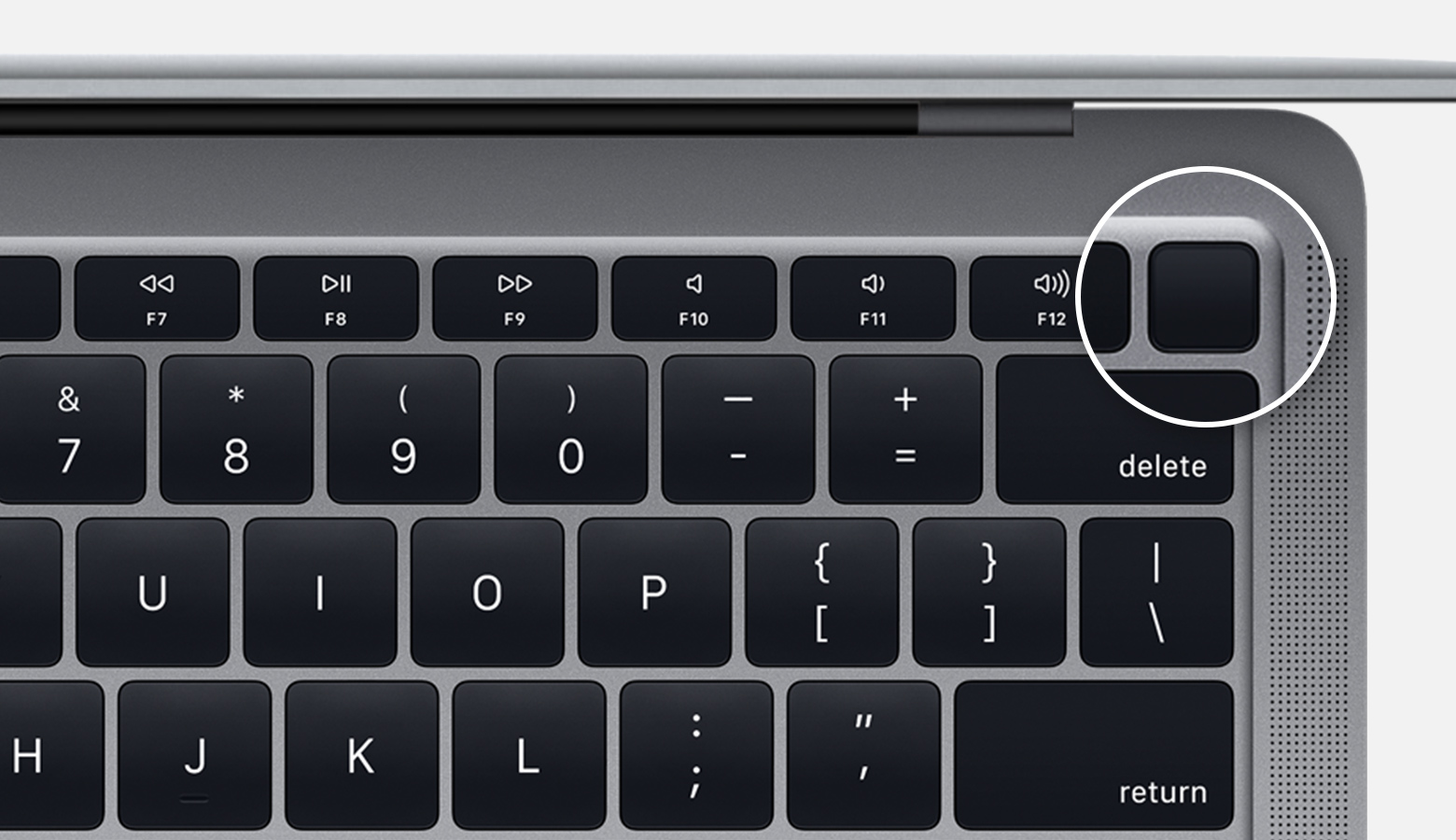
On MacBook Air models presented in 2018 or later, keep it in your mind that Touch ID (power button) is on the right side of the function keys at the top of the keyboard.
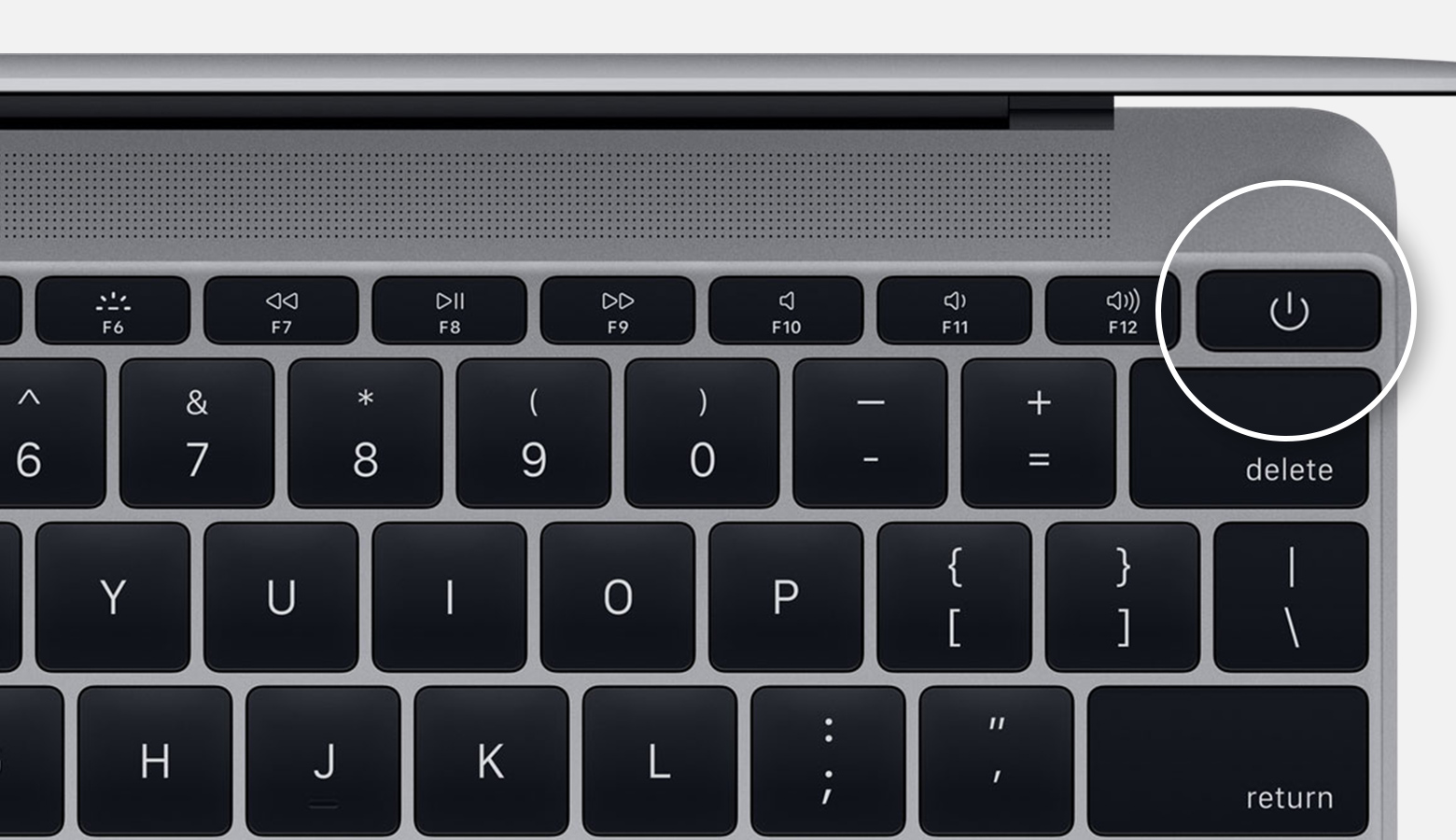
On Mac notebooks with physical function (F1–F12) keys, the power button is a key in the top-right corner of the keyboard.1
Newer Mac notebooks also turn on when you do these things:
- Open the lid of your Mac, even if it's not connected to power.
- Connect your Mac to a power adapter while its lid is open.2
Moreover, MacBook Pro and MacBook Air models presented in 2018 or later turn on when you press any key on the keyboard or press the trackpad.
Mac desktops
Mac mini
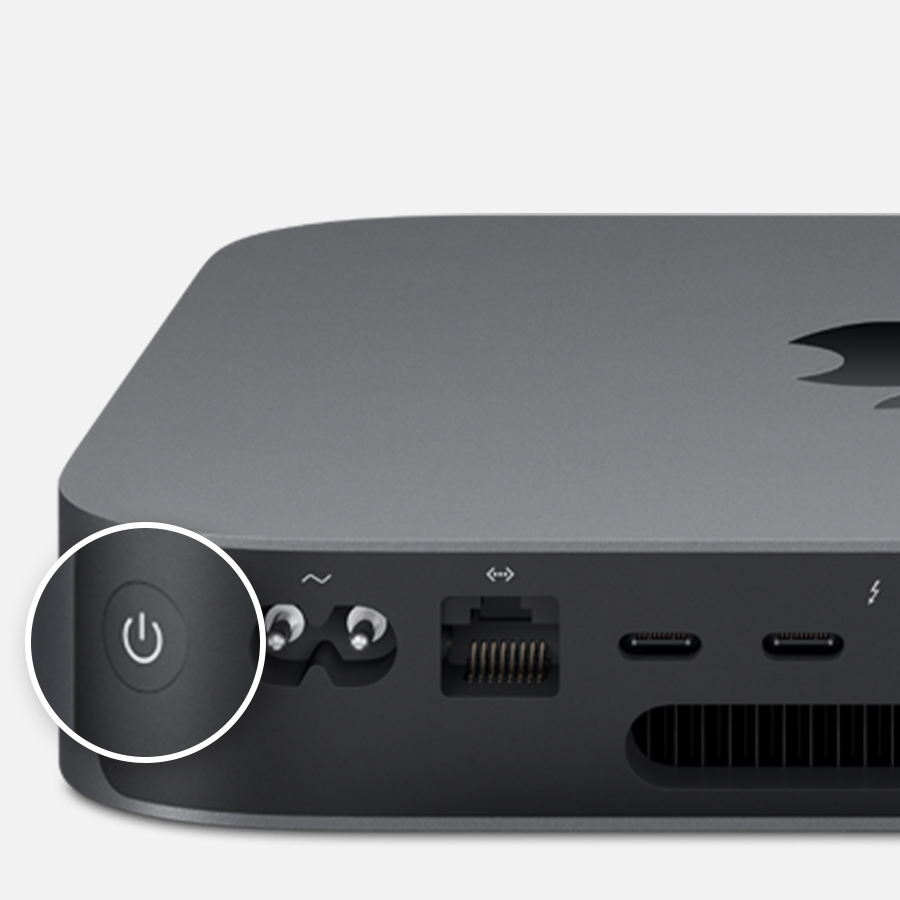
The power button is a circular button on the back of the computer. With the back of the Mac mini facing you, the power button is on the far-left side.
iMac and iMac Pro
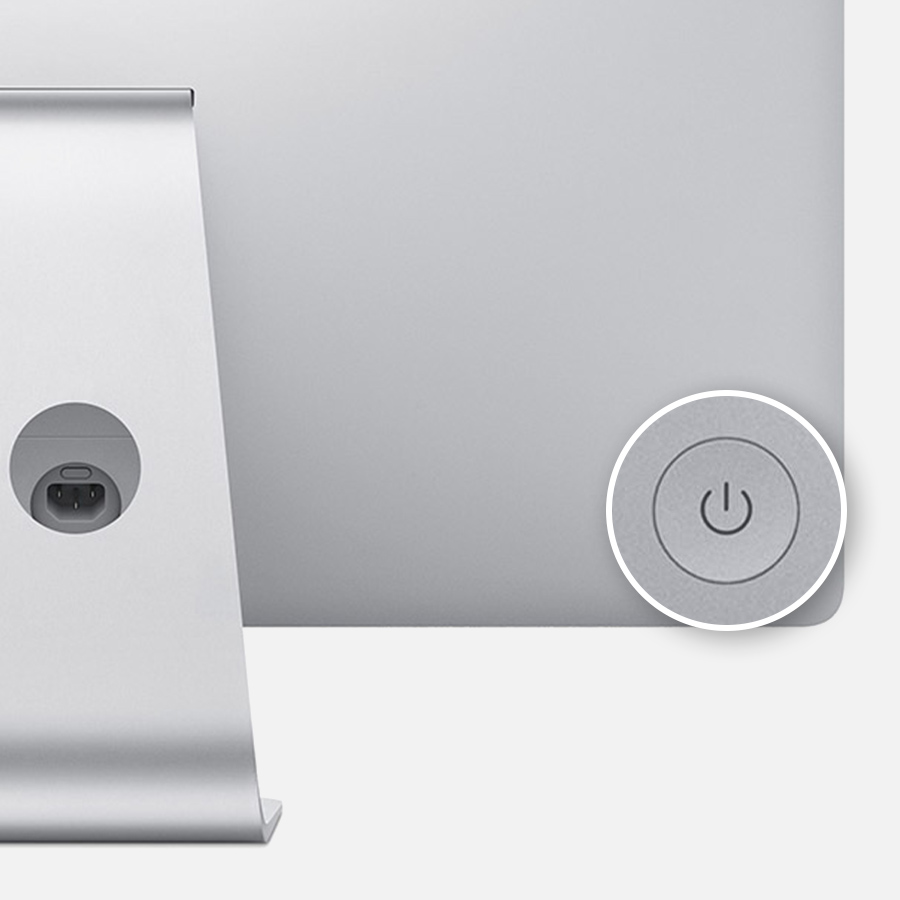
The power button is a circular button on the back of the computer. With the back of the computer facing you, the power button is in the lower-right corner.
Mac Pro (2019)
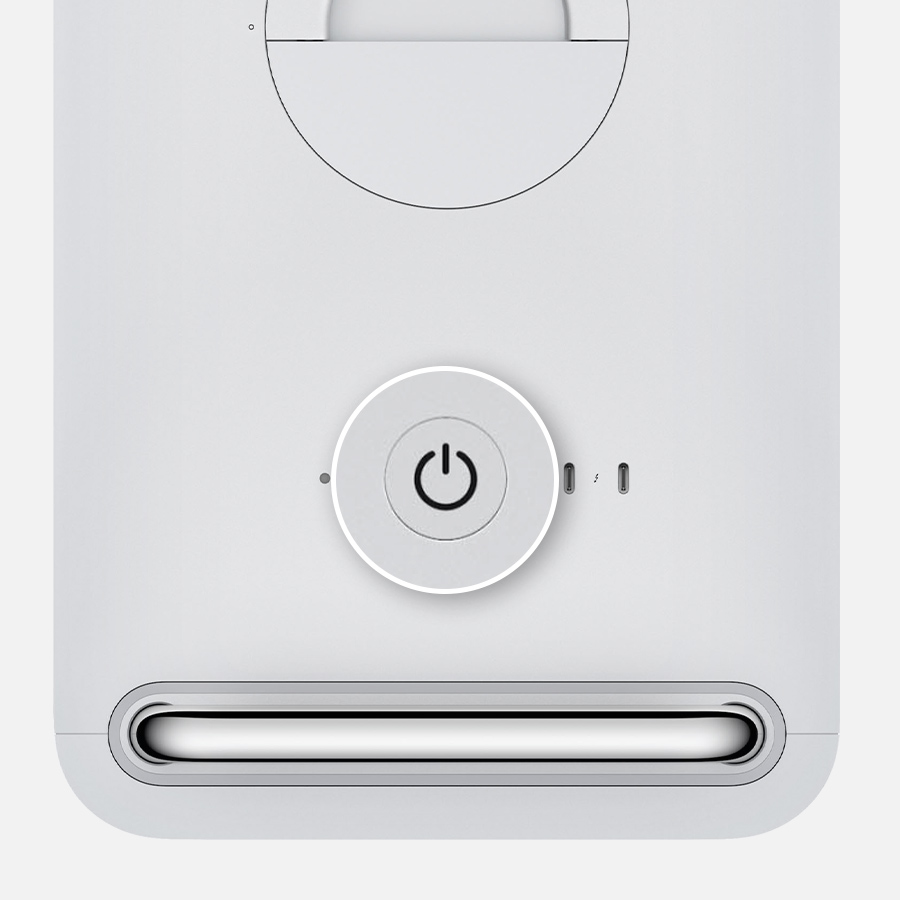
On Mac Pro (2019), the power button is a circular button on the top of the computer, next to the Thunderbolt 3 ports.3
Mac Pro (Rack, 2019)
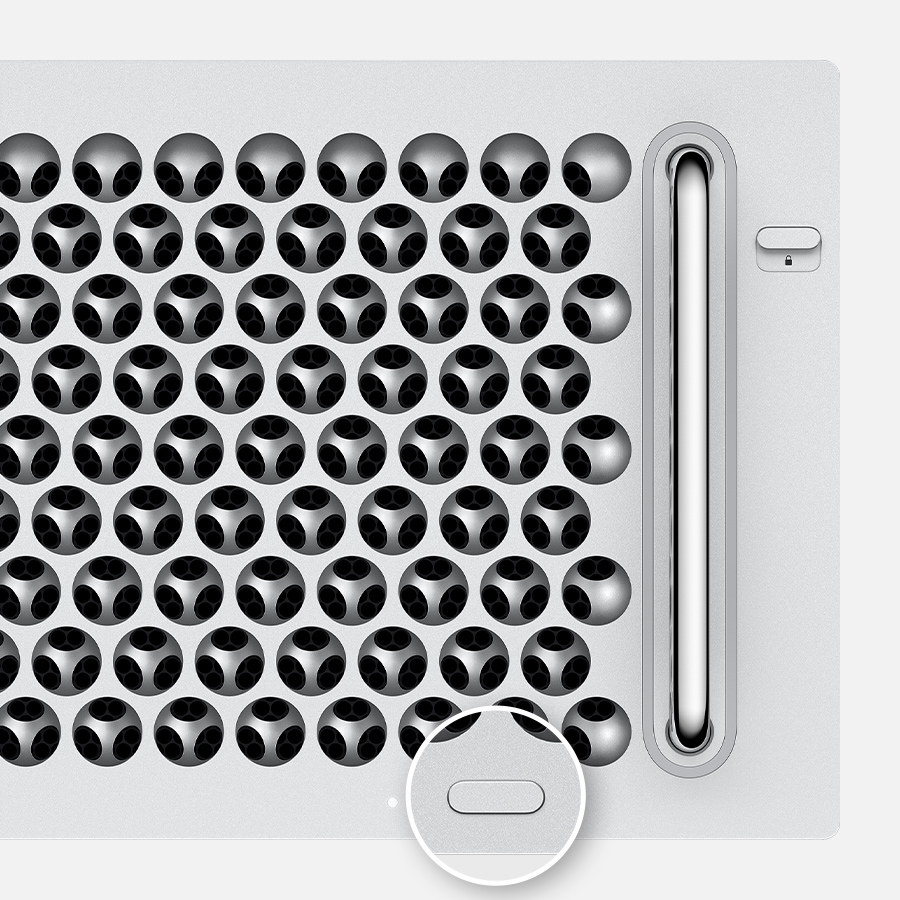
On Mac Pro (Rack, 2019), the power button is a pill shaped button on the front of the computer, next to the status indicator light.3
Turn off (shut down) your Mac
choosing Shut Down from the Apple menu is really the best way to shut down your Mac
Just as your Mac follows a startup process after it turns on, it follows a shutdown process before it turns off. That process contains automatically quitting all open apps and logging out of your macOS user account.
When your Mac doesn't shut down, try Force Quit to close any apps that aren't responding. In case it doesn’t work, press and hold the power button until the Mac turns off.
When your Mac doesn't turn on
When your Mac doesn't turn on, you should check your power connection, and if you're using a Mac notebook, become sure that its battery has some charge. Moreover you can also try holding down the power button for ten seconds, then pressing the power button again to see if the Mac turns on. Learn more about what to do if your Mac doesn't turn on.
If your Mac turns on but doesn't start up completely, you can use safe mode to isolate issues with your Mac.
Learn more
- You can also put your Mac to sleep, which is different than shutting down. Learn more about sleep and the other Energy Saver settings on your Mac.
- Learn keyboard shortcuts for sleep, log out, and shut down.
- On earlier Mac notebook models, the power button is a circular button next to the keyboard.
2. To start up your MacBook Pro or MacBook by plugging it in, make sure to use an AC adapter that provides sufficient power, like the one that came with the computer. Your Mac notebook's battery must have some charge to start up when you connect it to power.
3. On earlier Mac Pro models, the power button is a circular button on the back of the computer or on the front of the computer above the headphone jack.
TopTek System (TTS) is an Apple Authorized Service Provider. All of our technicians receive Apple training and they deliver the same high-quality service with genuine Apple parts and the proper tools, which provided and recommended by Apple, to open and close the device therefor the repairs are backed by Apple. Genuine Apple Parts are critical to a quality repair. Visit us to make sure you get your product back working the way it should.
To get service for your MacBook, you can call us or make a reservation online.
There’s no charge if your Macbook issue is covered under warranty, AppleCare+, or consumer law.
Not sure if you’re covered? Check your coverage by entering your Macbook serial number.
Most common MacBook Air/MacBook Pro Repair Services:
- MacBook Broken Screen Replacement
- MacBook Logic Board Replacement
- MacBook Mag safe 2/USB C (charging port) Replacement
- MacBook Battery Replacement
- MacBook Keyboard/TrackPad Replacement
- MacBook Water Damage Repair
